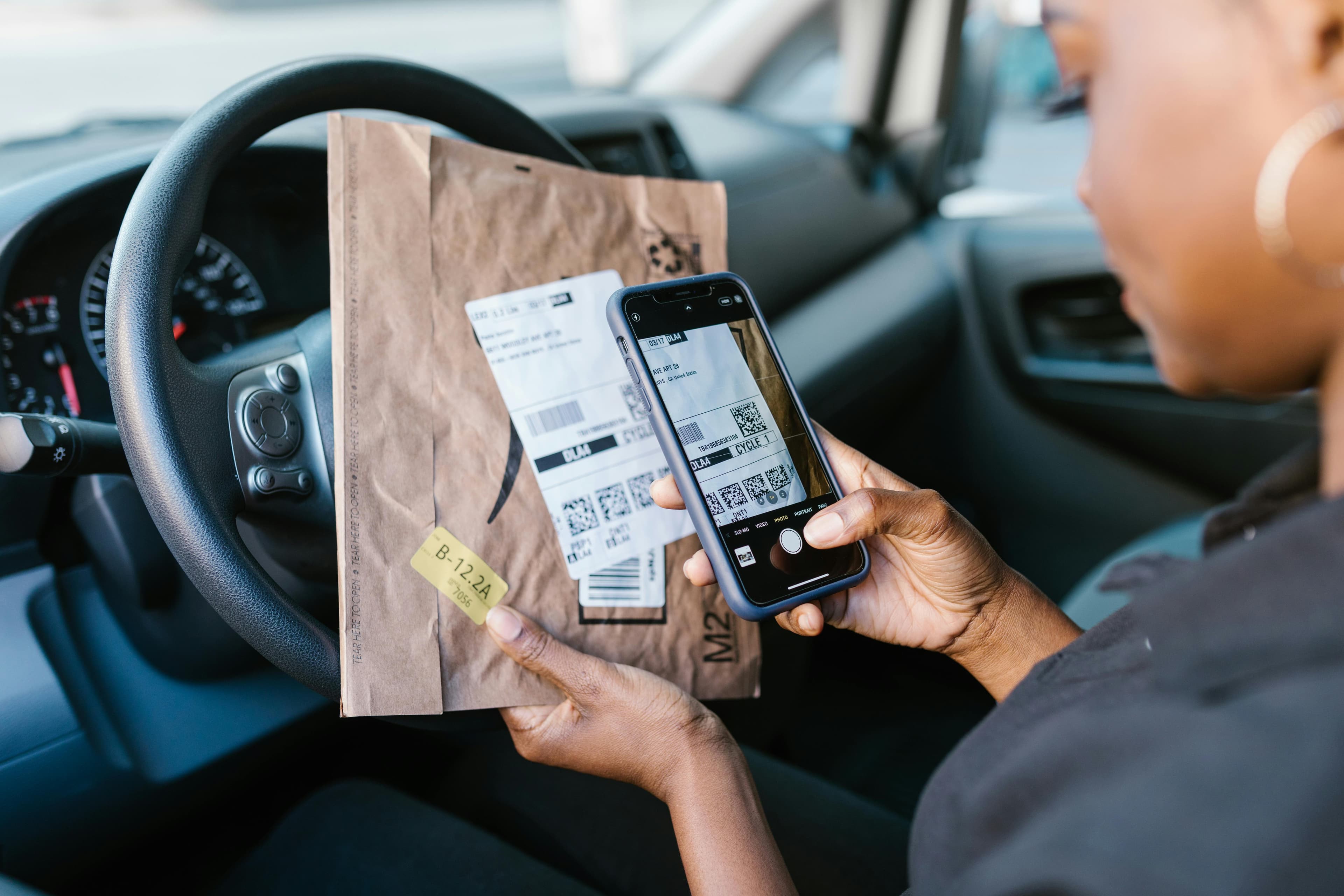
QR Code Design Guide: Contrast, Quiet Zone & Error Correction for Reliable Scans
Learn how contrast ratio, quiet zone margins, and QR error correction levels affect scan success. Best practices for designing scannable QR codes for print and digital displays.
A well-designed QR code is easy to scan on the first try. This guide explains how color contrast, the quiet zone around the symbol, and error correction settings work together—so your QR code generator output stays reliable on real phones in real lighting.
Why QR code design affects scan reliability
QR codes encode data in a two-dimensional pattern of dark modules on a light background (or the inverse). Smartphone cameras and decoder software must locate the finder patterns, sample each module, and reconstruct the payload. Poor contrast, clipped edges, or insufficient error correction can cause misreads or total failure—especially on older devices or in bright sunlight.
Whether you create a static QR code or use a dynamic QR code with analytics, the same visual rules apply: the symbol must remain machine-readable at the size and distance your audience will use.
Contrast, color, and accessibility
High contrast between the modules and the background is the single most important factor. Avoid low-contrast pairings such as light gray on white or navy on black unless separation is still very strong. If you use brand colors, test the final export: decorative gradients behind the code often reduce effective contrast.
For accessibility and reliability, many teams stick to a dark QR pattern on a white or off-white background, or a white pattern on a solid dark field. Inverted codes can work if contrast remains sharp and the quiet zone is preserved.
Quiet zone (margin) requirements
The quiet zone is a clear margin around the QR code that must not contain graphics or text. It allows scanners to detect the symbol boundaries. Trimming this margin—common when cropping for social graphics—directly hurts decode rates.
As a rule, leave at least the width of several modules as padding on all sides. When placing QR codes on packaging or posters, account for bleed, folds, and stickers so the full code including margin stays visible.
Error correction levels and logo overlays
QR codes support multiple error correction levels (commonly labeled L, M, Q, H). Higher levels restore more damaged or obscured modules—useful for logo placement in the center—but increase data density, which can require a larger physical print size for the same content.
If you embed a logo, increase error correction and keep the logo small relative to the symbol. Always verify scans on multiple devices after exporting from your QR code maker.
Testing checklist before launch
Test on both iOS and Android, using default camera apps where possible. Verify at the intended viewing distance and under typical lighting (indoor, outdoor shade, and a bright window).
If the code will appear on print, run a short print proof before mass production. Digital-only use still benefits from a quick scan test on a mid-range phone to catch contrast or scaling issues early.